Tuesday, 16 April 2013

Update on Tablet App Guidelines and Screenshots

Posted by Ellie Powers, Google Play team


More and more, developers are investing in a full tablet experience for their apps and seeing those investments pay off big. Starting today, it’s even easier to show off those tablet apps to users and to understand what it takes to make a great tablet app.


Many of you have already made optimizations to your apps to make them more beautiful and useful on tablets, and we’re giving you a way to showcase your application’s specialized tablet layouts. You’re now able to upload screenshots of your app running on 7” and 10” tablets to the Google Play Developer Console, and those screenshots are shown preferentially in Google Play to users on those devices.


In October, we published the tablet app quality checklist, which shares best practices for creating tablet applications that users will love. We've updated this checklist with additional tips and guidelines, as well as more details on specific technical checks you should perform to ensure your app is correctly optimized for tablets. Soon, we’ll start surfacing tips based on our tablet app quality guidelines directly in the Google Play Developer Console, and we’ll use these guidelines to help users better discover tablet apps in Google Play.


So upload your tablet screenshots and confirm your app follows the quality guidelines today.


style="border:1px solid #ddd;border-radius: 6px;"src="http://3.bp.blogspot.com/-XBN92CKxpaI/UW2VPfuCDrI/AAAAAAAACFU/rdXScleTb7Q/s1600/screenshots-example.jpeg" />

Tuesday, 9 April 2013

New Look, New Purchase Flow in Google Play

Posted by Purnima Kochikar, Director of Business Development, Games & Applications

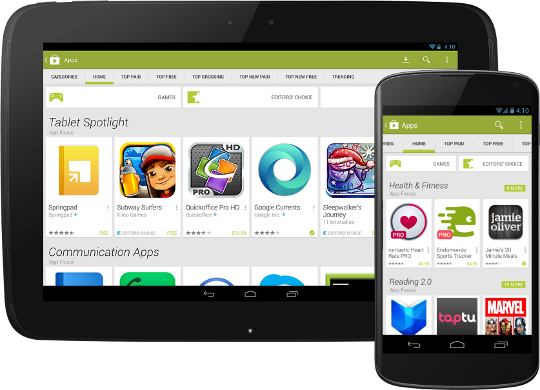
Today we announced that a new version of the Google Play Store app is rolling out worldwide to Android phones and tablets. This new app brings a redesigned UI that’s easier to use and showcases more great content for users. For developers, the new app offers more ways for your app to get noticed, as well as a new, simpler purchase flow.


The new UI is simple and easier to browse. Collections are front and center on the homepage, helping users discover great content through recommendations and curated lists. Items in collections are now presented as cards, with a larger area for your app’s graphics and a larger touch target for users. Overall, the homepage surfaces more apps than before and highlights them more effectively right on the page.


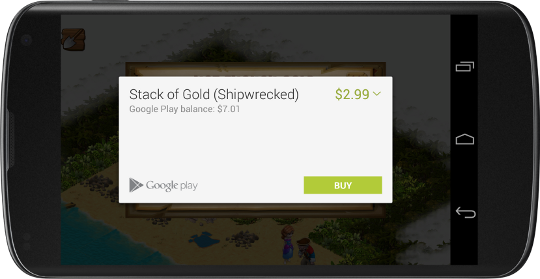
Most important for apps that sell in-app products, the new UI offers a dramatically simplified, dialog-based purchase flow that lets users buy your products without leaving the context of the app. Your app remains active and visible behind the purchase dialogs. When the purchase is complete, users return directly to the place they left, without your app having to reconstruct its state. It’s especially powerful when combined with In-app Billing v3, providing a faster and more reliable purchase flow.


All of these changes build on the core features of Google Play. Our editorial team will continue to look for exemplary apps to showcase in Editors’ Choice and other collections, and our familiar top lists will continue to track the market performance of your app on an ongoing basis.


Watch for the new Play Store app (version 4.0.25) coming to your devices soon. The rollout has already started and we expect all devices running Android 2.2 or higher to have received the update over the next few weeks.

Tuesday, 12 March 2013

Now is the time to switch to the new Google Play Developer Console

Posted by Ellie Powers, Google Play team


The new Google Play Developer Console is out of preview and is the default experience. In addition to offering all of the functionality of the old version, the new version features a streamlined publishing flow, store listings in more languages with language-specific graphics, and new user ratings statistics, so you’ll have better tools for delivering great Android apps that delight users. If you haven't already made the switch, now is the time, as we'll be retiring the former version on April 15 to focus our efforts on this new experience.


The new Developer Console brings you new functionality built on top of a quick-to-navigate user experience. You can add language-specific graphics to your store listing to help your users around the world understand what your app is about. New graphs let you track your ratings over time with breakdowns by device, country, app version, and more. The statistics page now shows you when you released each version of your app, so you see how each new version changes your installations and ratings, and you can view crashes specific to an application version. These new features are only the beginning of what’s to come for developers on Google Play in the future.


If you're still using the old Developer Console, now is the time to switch over fully to the new version by clicking “Try the new version” in the header. Let us know what you think by clicking the “Feedback” link in the header in the new Developer Console, and if you experience any serious issues, please contact support. We’re planning some more improvements in the next month and in the future. Your input will continue to be key to what we do.


Monday, 4 March 2013

Native RTL support in Android 4.2

Posted by Fabrice Di Meglio, Android Frameworks Team

Android 4.1 (Jelly Bean) introduced limited support for bidirectional text in TextView and EditText elements, allowing apps to display and edit text in both left-to-right (LTR) and right-to-left (RTL) scripts. Android 4.2 added full native support for RTL layouts, including layout mirroring, allowing you to deliver the same great app experience to all of your users, whether their language uses a script that reads right-to-left or one that reads left-to-right.


If you do nothing, your app will not change — it will continue to appear as it currently does. However, with a few simple changes, your app will be automatically mirrored when the user switches the system language to a right-to-left script (such as Arabic, Hebrew, or Persian). For example, see the following screenshots of the Settings app:


To take advantage of RTL layout mirroring, simply make the following changes to your app:


  1. Declare in your app manifest that your app supports RTL mirroring.

    Specifically, add android:supportsRtl="true" to the <application> element in your manifest file.


  2. Change all of your app's "left/right" layout properties to new "start/end" equivalents.


    • If you are targeting your app to Android 4.2 (the app's targetSdkVersion or minSdkVersion is 17 or higher), then you should use “start” and “end” instead of “left” and “right”. For example, android:paddingLeft should become android:paddingStart.

    • If you want your app to work with versions earlier than Android 4.2 (the app's targetSdkVersion or minSdkVersion is 16 or less), then you should add “start” and end” in addition to “left” and “right”. For example, you’d use both android:paddingLeft and android:paddingStart.


For more precise control over your app UI in both LTR and RTL mode, Android 4.2 includes the following new APIs to help manage View components:


You can even create custom versions of layout, drawables, and other resources for display when a right-to-left script is in use. Simply use the resource qualifier "ldrtl" to tag your resources, meaning “layout direction right-to-left”. To debug and optimize custom right-to-left layouts, HierarchyViewer now lets you see start/end properties, layout direction, text direction, and text alignment for all the Views in the hierarchy.


It's now easy to create beautiful Android apps for all your users, whether they use a right-to-left or left-to-right language. We look forward to seeing some great apps!


Followers